


Your GitHub profile is your developer résumé in 2026. Recruiters, CTOs, and fellow engineers scroll through your repositories and make snap judgments based on a single glance at your README.md. A well-structured README signals that you care about communication, documentation, and the people who will use your work. A blank or badly written one signals the opposite — even if the code underneath is brilliant.
Why Your README Is Your Most Important Developer Document
The README is the front page of every repository. It is what GitHub renders by default when anyone visits your project. It is indexed by search engines. It is what maintainers read before deciding whether to merge your pull request contribution. It is what hiring managers screenshot and share when evaluating candidates.
In the Indian developer ecosystem specifically, where thousands of engineers are building portfolios on GitHub simultaneously, a standout README is one of the fastest ways to differentiate yourself. It takes two hours to write a great one. Almost nobody does it.
The Anatomy of a World-Class README
A professional README follows a predictable structure. Every section serves a purpose — do not include sections you cannot fill meaningfully.
1. Project Title and Description (Required)
The very first thing a visitor reads. One to two sentences maximum. Tell them what the project does and who it is for. No jargon, no buzzwords.
# PaySlip Generator

A privacy-first browser tool that generates Indian salary slips
as PDF files. All calculations happen locally — no server, no uploads.
2. Badges (Optional but Impactful)
Shields.io badges communicate project health at a glance: build status, license, version, last commit, number of stars. They make even small projects look well-maintained.


3. Screenshots or Demo GIF (Highly Recommended)
A picture is worth 1,000 words of documentation. Embed a screenshot or a GIF showing your project in action. This is the single highest-return addition to any README.

4. Features List (Required)
A bullet list of what your project actually does. Be specific and honest — do not list things that are not implemented yet.
5. Installation & Quick Start (Required)
Step-by-step commands to get the project running locally. Assume the reader has never seen your tech stack before.
## Quick Start

\`\`\`bash
git clone https://github.com/username/repo.git
cd repo
npm install
npm run dev
\`\`\`
6. Usage Examples (Required for Libraries/Tools)
Show real, copy-pasteable code examples. Nothing builds confidence like seeing exactly how to use your project.
7. Contributing Guide (For Open-Source Projects)
Link to a CONTRIBUTING.md file. At minimum, explain how to report bugs and submit pull requests.
8. License (Required)
State the license clearly. MIT and Apache 2.0 are the most permissive and common for developer tools. No license means "all rights reserved" — which scares contributors away.
The Hidden Problem: Writing README Blind
Most developers write their README in a plain text editor and push it to GitHub to see what it looks like — then push a dozen small formatting fixes as they spot issues. This is painful and clutters your commit history with "fix readme" commits.
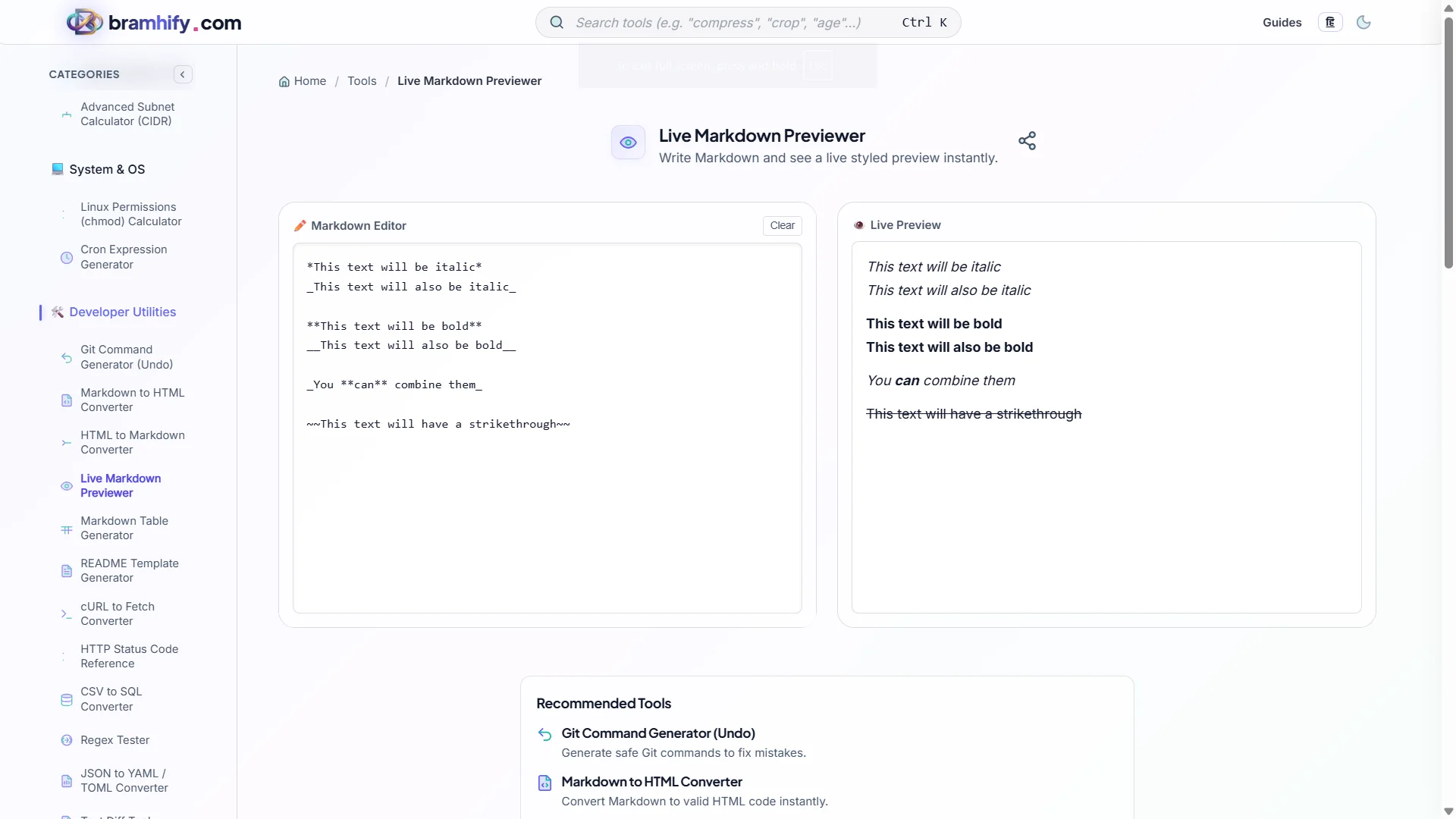
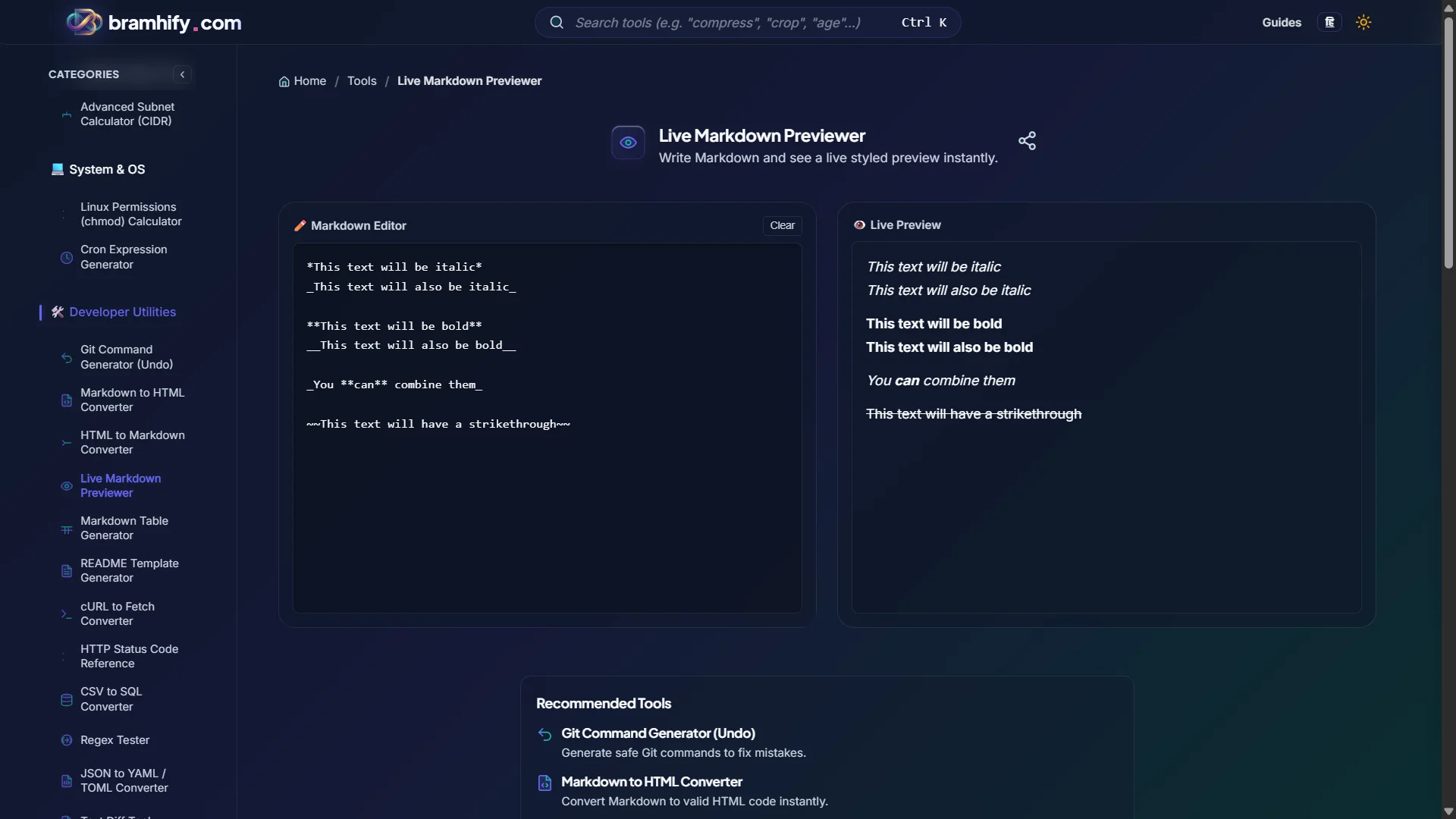
A live Markdown previewer eliminates this entirely. You see your formatted README exactly as GitHub will render it, in real-time, without a single git push. Bramhify's Live Markdown Previewer runs 100% locally — your proprietary documentation stays on your device.
Live Markdown Previewer:

Step-by-Step Guide
Step 1: Open the Previewer and Paste Your Draft
Open the Live Markdown Previewer and paste your README draft into the left editor panel. The right panel instantly shows the rendered output.
Step 2: Structure Your Sections
Use the anatomy above as your template. Add each section using ## headings. Watch the table of contents form in the preview as you add headings.
Step 3: Check Tables and Code Blocks
These are the most commonly broken Markdown elements. Tables need consistent pipe alignment and a header separator row. Code blocks need the correct language tag (```bash, ```javascript, etc.) for syntax highlighting.
Step 4: Final Review — Read as a Stranger
When your README looks good in the previewer, read it top-to-bottom imagining you have never seen the project before. Can you understand what it does in 10 seconds? Can you get it running in under 5 minutes? If not, add what is missing.
Frequently Asked Questions (FAQs)
What sections are absolutely required in a GitHub README?
At minimum: project title, one-sentence description, quick start commands, and license. These four sections ensure anyone who lands on your repository knows what it is, can try it immediately, and knows if they can use it in their own projects. Everything else — badges, screenshots, contributing guide — adds polish.
Should I write my README before or after building the project?
Both, in stages. Write a brief one-paragraph README before you start — it forces you to clarify what you are actually building. Update it with the installation section once the project is runnable. Add screenshots and the full features list once the project is stable. A README is a living document, not a one-time artifact.
How do I add a table of contents to my README?
GitHub automatically generates anchor links for every heading. Link to them using lowercase, hyphenated slugs: [Installation](#installation), [Features](#features). For long READMEs, a table of contents at the top dramatically improves navigation. You can generate one automatically using the markdown-toc npm package or VS Code extensions.
See also: Markdown to HTML: How Developers Build Docs Pipelines