


You just SSH'd into your production Linux server for the first time. You try to run a script. Permission denied. You Google the error. Someone says "run chmod 777". You should not do that. Here is what file permissions actually mean, why 777 is dangerous, and how to set exactly the permissions you need.
How Linux File Permissions Work
Every file and directory in Linux has three permission sets assigned to three categories of users:
| User Class | Symbol | Meaning |
|---|---|---|
| Owner (user) | u | The user who created or owns the file |
| Group | g | Other users in the same group as the owner |
| Others | o | Everyone else on the system |
Each class can have three types of permissions:
| Permission | Symbol | Numeric Value | On a File | On a Directory |
|---|---|---|---|---|
| Read | r | 4 | View file contents | List directory contents |
| Write | w | 2 | Modify or delete the file | Create, rename, or delete files inside |
| Execute | x | 1 | Run the file as a program | Enter/access the directory (cd) |
The Numeric (Octal) System
Each permission set (owner, group, others) is represented by a number from 0-7. You calculate it by adding the values of the permissions you want to grant:
Read (4) + Write (2) + Execute (1) = 7   → Full access
Read (4) + Write (2)               = 6   → Read and write, no execute
Read (4) +             Execute (1) = 5   → Read and execute, no write
Read (4)                           = 4   → Read only
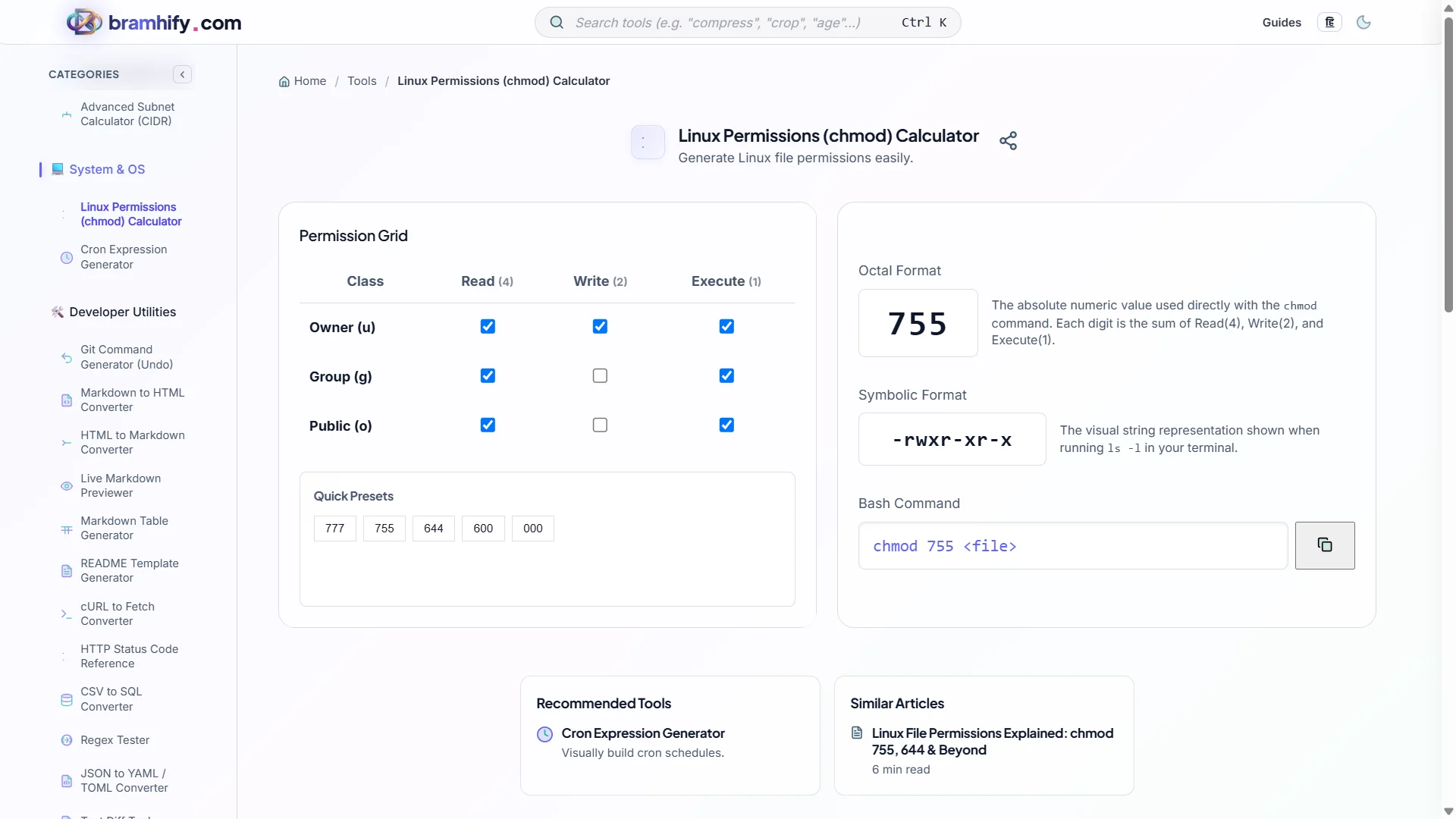
A three-digit chmod code sets permissions for owner, group, and others in that order. So 755 means:
- 7 (owner): Read + Write + Execute — full access
- 5 (group): Read + Execute — can run, cannot modify
- 5 (others): Read + Execute — same as group
The Most Common Permissions Explained
chmod 644 — Standard Files
-rw-r--r--
Owner: Read + Write (6)
Group: Read only (4)
Others: Read only (4)
Use for: HTML files, CSS files, images, configuration files, and any text file that should be readable by the web server but only writable by the owner. This is the correct permission for most web assets.
chmod 755 — Directories and Executable Scripts
drwxr-xr-x
Owner: Read + Write + Execute (7)
Group: Read + Execute (5)
Others: Read + Execute (5)
Use for: Directories (execute on a directory means "can enter it") and shell scripts or executables that others should be able to run. The execute bit on a directory is mandatory for anyone to cd into it.
chmod 600 — Private Files
-rw-------
Owner: Read + Write (6)
Group: None (0)
Others: None (0)
Use for: SSH private keys (~/.ssh/id_rsa), database config files containing passwords, .env files. SSH will refuse to use a private key that is not 600 or stricter.
chmod 777 — Why You Should Almost Never Use This
-rwxrwxrwx
Everyone: Read + Write + Execute
This gives every user on the system full control over the file. On a shared server or VPS, any compromised user account can modify, delete, or execute your files. It is almost never the right answer. If you are using 777 to "fix" a permissions error, you are treating the symptom, not the cause.
The Hidden Risk of Guessing chmod Values
Incorrectly setting permissions on production files has real consequences:
- Too permissive: An attacker with access to any user account can read your config files (database passwords, API keys)
- Too restrictive: Your web server (typically running as
www-dataornginx) cannot read the files it needs to serve, causing 403 errors
Rather than doing the mental octal arithmetic under pressure, use a calculator that shows you exactly which bits you are setting.
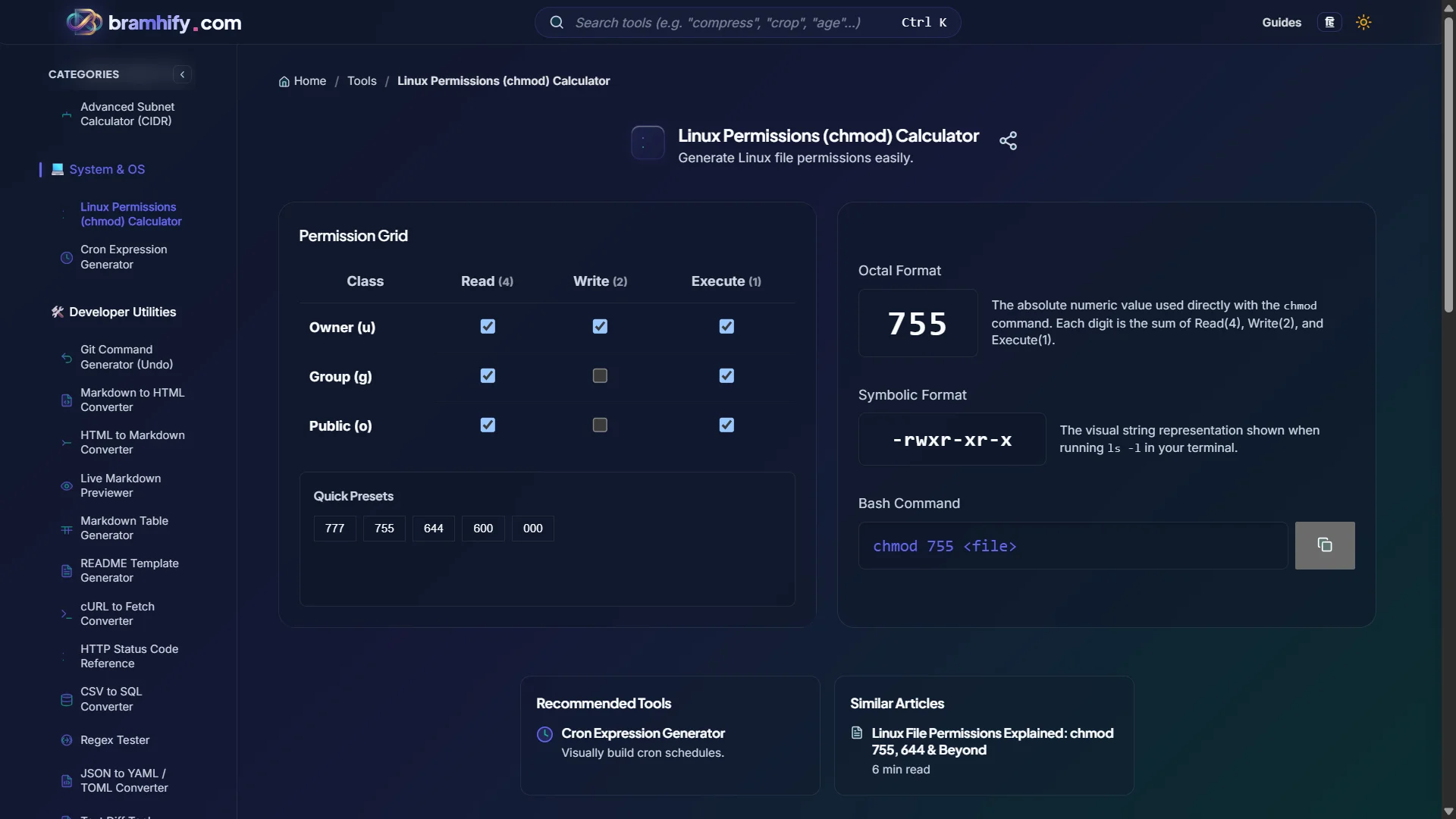
Linux Permissions (chmod) Calculator:

Step-by-Step Guide
Step 1: Understand What You Are Trying to Achieve
Before changing any permissions, decide: who needs to read this? Who needs to write? Who needs to execute? Answer for owner, group, and others separately.
Step 2: Use the Calculator
Open the chmod Calculator and tap the checkboxes for the permissions you want for each user class. The tool generates the numeric code and the exact chmod command in real-time.
Step 3: Apply the Command
Copy the generated command and run it in your terminal. For example: chmod 644 config.json or chmod 755 deploy.sh.
Step 4: Verify With ls -l
After applying, run ls -l on the file to confirm the symbolic permission string matches your intent. drwxr-xr-x is 755. -rw-r--r-- is 644. If it looks wrong, re-run the calculator.
Frequently Asked Questions (FAQs)
What permissions should I set on my web server files?
The standard secure setup for a web server: directories should be 755 (the server process needs execute to enter them), web-accessible files (HTML, CSS, images, JS) should be 644, and config files containing secrets should be 600 (owner read/write only, hidden from the web server process which runs as a different user).
Why does chmod 777 fix my problem but is still wrong?
Because 777 gives every user on the system full permissions, it "fixes" the issue by making the error impossible — any process can now read and write your file. The correct fix is to identify which user or group actually needs access and grant only that access. If your web server is www-data, add the file's group as www-data and set 664 or 644 accordingly.
How do I recursively set permissions on a whole directory?
Use chmod -R 755 /path/to/directory for all items recursively. However, be careful: setting 755 on files gives them the execute bit, which you only want on actual scripts and directories, not on HTML or config files. The safer approach is: find /path -type d -exec chmod 755 {} + for directories only, then find /path -type f -exec chmod 644 {} + for files only.
See also: Free Cybersecurity Learning Resources for Freshers (2026)