


Every developer has been there: a wall of minified JSON, an API response you cannot read, or a config file so mangled that even the error message makes no sense. Your first instinct is to Google "json formatter online" and paste it somewhere. That instinct is costing you more than you realise.
The Hidden Risk in Your JSON
JSON is rarely just innocent sample data. In the real world, your JSON payloads contain:
- API keys and OAuth tokens embedded in response bodies during debugging
- User PII (names, emails, phone numbers) in API response payloads
- Internal service URLs and infrastructure details in config dumps
- Authentication headers and session cookies pasted along with the payload
In late 2025, a string of security incidents traced credential leaks back to popular online JSON formatter tools that were logging inputs server-side. This is not paranoia — it is a documented attack surface. When you paste JSON into a random online formatter, you are trusting an unknown third-party server with data that may trigger GDPR, SOC 2, or internal security policy violations.
Bramhify's JSON Formatter & Validator processes everything 100% in your browser using JavaScript. Nothing is sent to any server. Nothing is logged. Your JSON never leaves your device.
JSON Formatter & Validator:
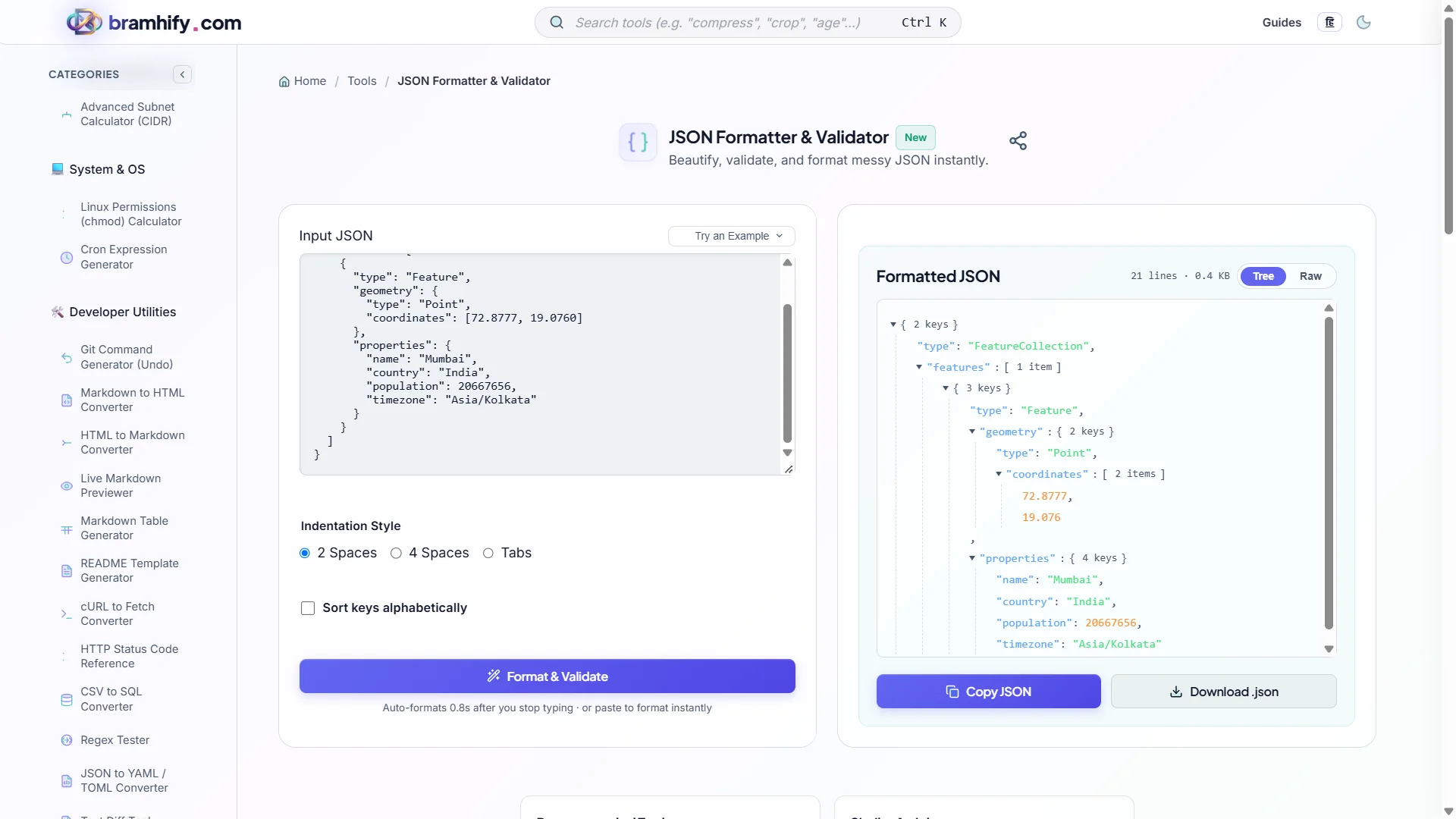
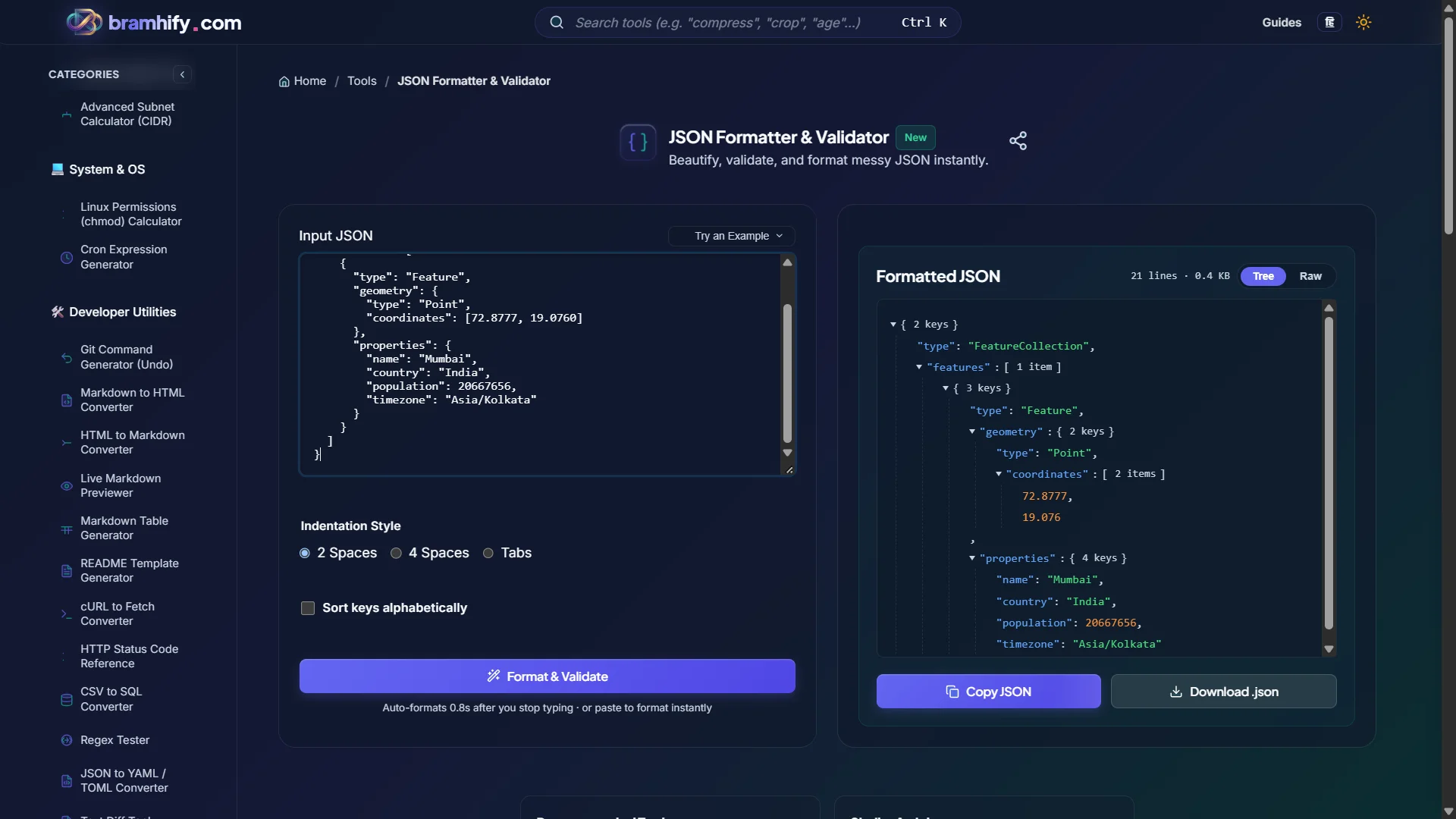

What Makes a Good JSON Formatter?
Not all formatters are equal. Here is what separates a tool you can actually trust and rely on from one that just wraps JSON.stringify:
| Feature | What It Does | Why It Matters |
|---|---|---|
| Validation with error location | Points to the exact line and character where JSON breaks | Minified JSON errors are near-impossible to find manually |
| Collapsible tree view | Lets you expand/collapse nested objects and arrays | Critical for deeply nested API responses (5+ levels) |
| Sort keys alphabetically | Reorders all keys A-Z | Enables easy visual diff comparison between two payloads |
| Indentation control | 2 spaces, 4 spaces, or tabs | Matches your team's existing code style |
| File size / line count stats | Live metrics on the current payload | Quickly identify bloated payloads |
| Download as .json | Exports the formatted output | Saves the formatted version for documentation or test fixtures |
Bramhify's formatter includes all of the above, plus an offline-capable architecture so it works even without an internet connection — useful when you are debugging on a plane or in a restricted corporate network.
Step-by-Step Guide
Step 1: Paste Your JSON
Open the JSON Formatter and paste your raw, minified, or broken JSON into the input panel. The tool accepts everything from a single object {} to deeply nested arrays with hundreds of nodes.
Step 2: Read the Validation Result
If your JSON has a syntax error, the tool instantly shows you the exact line and character position of the problem. A common cause is a trailing comma on the last key in an object — valid in JavaScript but illegal in strict JSON.
Step 3: Switch to Tree View
Tap the Tree View toggle to switch from raw text to an interactive, collapsible tree. This is the fastest way to understand the shape of a deeply nested structure. Node counts next to each key tell you how many children exist without expanding them.
Step 4: Sort, Copy, and Download
Use Sort Keys if you need to compare two payloads side by side (sorted keys make the diff trivial). Tap Copy to grab the formatted output, or Download to save it as a .json file for your project.
Architecture / Core Concepts
Why JSON Validation Fails Silently in Production
The most dangerous JSON bugs are not syntax errors — those throw exceptions you can catch. The silent killers are:
- Unexpected
nullvalues where your code assumes a string - Number-as-string (
"price": "499"vs"price": 499) causing downstream math bugs - Missing keys in API responses that only appear under certain conditions
A formatter + validator is your first line of defence. But it cannot catch semantic errors — only your type system (TypeScript, Zod, Pydantic) can do that. Think of the formatter as the spell-checker and your type validator as the grammar checker.
JSON5 / JSONC Support
Note that Bramhify's formatter supports strict JSON only — comments (JSONC) and trailing commas (JSON5) are not supported. If your config file uses these extensions (common in VS Code's settings.json or Webpack configs), strip the comments first before pasting.
Frequently Asked Questions (FAQs)
Is it safe to paste my API responses into a JSON formatter online?
It depends entirely on whether the tool processes data on your device or their server. Bramhify's formatter is 100% client-side — your browser's JavaScript engine does all the work, and nothing is transmitted over the network. You can verify this yourself: open your browser's Network tab while using the tool and watch — you will see zero outgoing requests after the initial page load.
Why does my JSON fail validation even though it looks correct?
The most common culprits are: (1) trailing commas on the last key of an object or array — valid in JS but not in JSON, (2) single quotes instead of double quotes around strings, (3) unescaped special characters inside strings (newlines, backslashes, etc.), and (4) undefined values which are not valid JSON primitives (use null instead).
Can the formatter handle very large JSON files?
The tool handles files up to approximately 5MB comfortably. Beyond that, the interactive tree view may slow down due to rendering thousands of DOM nodes simultaneously. For files larger than 5MB, use jq in your terminal instead — it is the industry standard for processing large JSON files at the command line.
What indentation should I use — 2 spaces or 4?
This is a team style decision, not a technical one. JavaScript and Python communities generally prefer 2 spaces; Java and .NET teams often prefer 4 spaces or tabs. The JSON standard itself is indentation-agnostic. Pick whichever matches your project's .editorconfig or linting rules.
See also: Top AI & Developer Productivity Tools to Master in 2026