


Some of the best creative ideas happen when you aren't in front of a camera—a late-night song riff recorded in iPhone Voice Memos, a raw storytelling rant on an Android recorder, or a quick voice note breaking down a hot industry take.
When you try to share that recording on Instagram Reels, TikTok, or YouTube Shorts, you immediately hit a wall: none of those apps let you upload an .m4a, .mp3, or .wav audio file directly. You need a vertical 9:16 MP4 video—ideally with an aesthetic photo backdrop and an animated waveform so viewers stop scrolling and tap for sound.
Why Skip Heavy Video Editors and Cloud Converters?
Most creators try one of two painful routes:
- Desktop editors (Premiere, DaVinci, CapCut): Overkill just to pair a 40-second voice memo with a photo—and CapCut increasingly locks clean waveform templates or watermark-free exports behind paid tiers.
- Random cloud converter websites: Force you to upload private, unreleased voice memos to unknown servers, cap resolution at 480p/720p, or plaster watermarks across your Reel.
Bramhify's Audio to Video Converter handles the entire pipeline 100% locally inside Safari, Chrome, or Edge using WebAssembly (FFmpeg.wasm). Your voice memo never leaves your phone or laptop, renders cleanly at 9:16 (720p or 1080p Full HD), supports Smart Blur-Fill + animated waveforms, and exports with zero watermarks.
Audio to Video Converter:
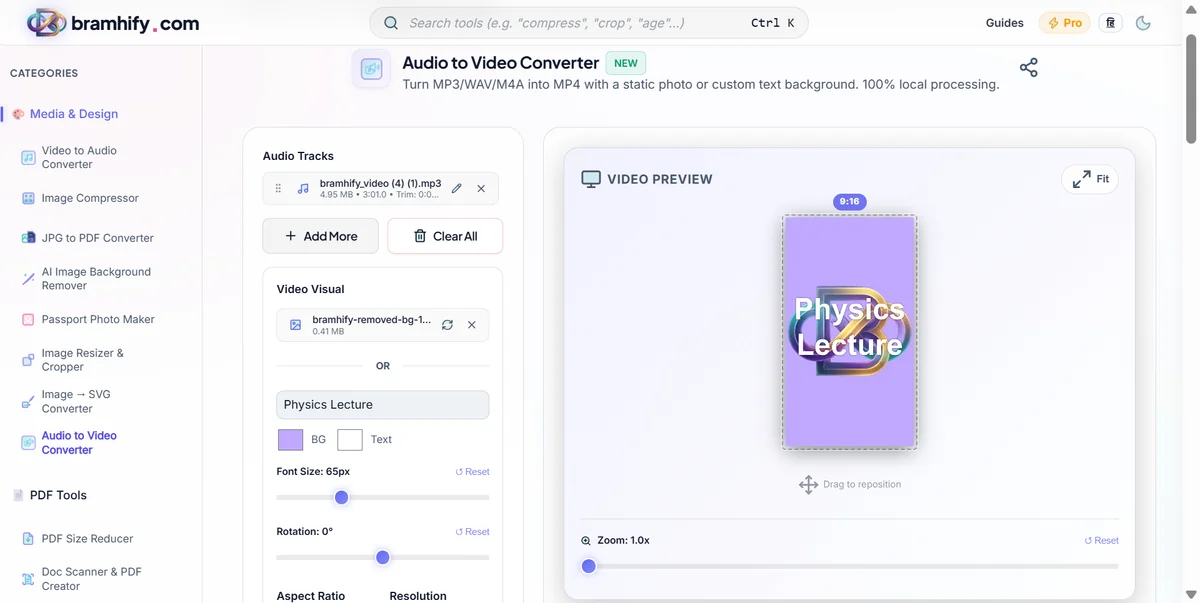
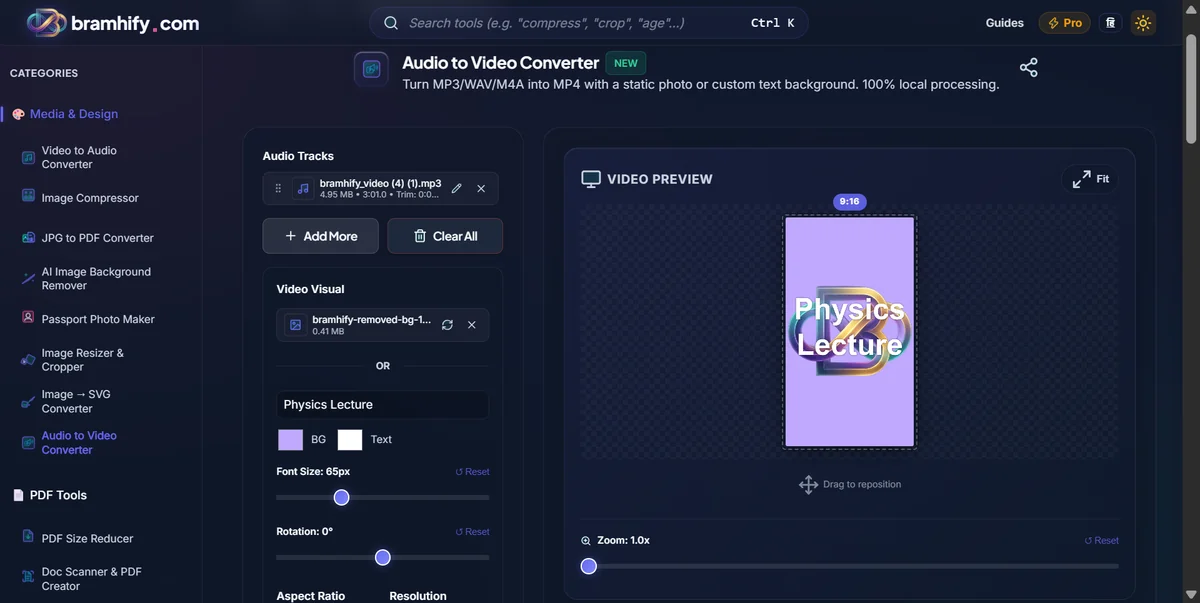

Reels vs. TikTok vs. YouTube Shorts Format Guide
One single 9:16 MP4 from Bramhify works across all three vertical video platforms—keep these specs in mind so UI buttons never cover your waveform or title:
| Platform | Aspect Ratio | Ideal Length | Safe Zone Tip |
|---|---|---|---|
| Instagram Reels | 9:16 (1080×1920 or 720×1280) | 15–90 seconds | Avoid bottom 20% (caption & audio ticker overlay) |
| TikTok | 9:16 (1080×1920 or 720×1280) | 15–60 seconds | Keep key text/waves centered away from right-side icons |
| YouTube Shorts | 9:16 (1080×1920 or 720×1280) | Up to 60–180 seconds | Keep top 12% and bottom 20% clear of Shorts controls |
Step-by-Step: Export Your Voice Memo First
On iPhone (Apple Voice Memos → .m4a)
- Open the built-in Voice Memos app and tap the recording you want to share.
- Tap the
...(More) button → tap Save to Files. - Save it in On My iPhone or iCloud Drive—Apple saves it cleanly as an
.m4aaudio file.
On Android (Recorder / Samsung Voice Recorder → .m4a / .mp3 / .wav)
- Open your phone's Recorder app and locate your clip.
- Tap Share → Save to Files (or find it directly inside
Internal Storage → Recordings).
Step-by-Step: Turn the Voice Memo into a 9:16 Reel / TikTok
Step 1: Upload and Trim Your Voice Memo
Open Bramhify's Audio to Video Converter and select your .m4a, .mp3, or .wav file. Tap the Trim (pencil) icon to snip off microphone handling noise at the beginning and dead air at the end. On short-form feeds, starting the audio within the first 0.5 seconds dramatically improves 3-second hold rate.
Step 2: Add a Photo or Aesthetic Quote Background
Upload a photo from your camera roll (a candid shot, lyric graphic, or album art). If your photo is horizontal or square, keep the preview toggle on Blur (Smart Blur-Fill) so the vertical 9:16 frame fills cleanly with a softly blurred backdrop instead of harsh black letterbox bars. You can also switch to Fill and drag/zoom your photo to reframe a portrait perfectly.
Don't have a photo ready? Leave the photo empty, type a punchy hook in the text box (for example, "Unpopular opinion about remote work..."), pick a dark background color, and adjust font size until it sits squarely in the center safe zone.
Step 3: Add a Live Animated Waveform
Under Audio Waveform Visualizer, select:
- Centered Wave for storytelling, hot takes, and podcast-style Reels,
- Equalizer Bars for song demos, guitar riffs, or beat snippets, or
- Smooth Audio Line for minimalist poetry and ambient voiceovers.
Choose a high-contrast color and set Position to Center (or Top if you plan to add Instagram/TikTok auto-captions near the bottom!).
Step 4: Choose 9:16 & Export MP4
Confirm Aspect Ratio is set to 9:16 (Reels / Shorts / WhatsApp) and pick 1080p (FHD) (or 720p HD for ultra-fast rendering on older phones). Tap Generate Video and keep the tab open until the progress bar finishes. Download the MP4 directly to your device.
Step 5: Upload Natively & Enable Platform Auto-Captions
Open Instagram Reels, TikTok, or YouTube Shorts, pick your newly downloaded bramhify_video.mp4 from your gallery, and turn on the app's native Captions sticker. Combining a live-moving waveform with synced word-by-word captions gives silent scrollers two immediate visual cues to unmute and watch to the end.
Frequently Asked Questions (FAQs)
Can I convert an iPhone Voice Memo (.m4a) to MP4 without installing an app?
Yes. Save your Voice Memo to the iPhone Files app (... → Save to Files), open Bramhify in Safari, upload the .m4a file, and export a 9:16 MP4 directly inside the browser with no app install.
Why does my square photo look stretched or have black bars in other converters?
Basic converters either stretch your image to 9:16 or add solid black bars above and below. Bramhify's Smart Blur-Fill mode keeps your original image aspect ratio untouched in the center while filling the surrounding vertical space with a softly blurred copy of the same image.
Can I combine two separate voice memos into one TikTok or Reel?
Yes! Upload multiple audio files (up to 10 tracks), drag them into the exact playback order, trim each clip individually, and export one seamless MP4 video.
Does Bramhify compress or upload my unreleased music or voice notes?
No. Everything runs 100% locally in your browser using WebAssembly (FFmpeg.wasm). Your recordings never touch a server, and audio is exported at crisp 192 kbps AAC inside a universal H.264 MP4.
How long does rendering a 45-second animated waveform Reel take?
On a modern laptop or smartphone, a 30–60 second 720p/1080p animated audiogram typically renders in 10 to 30 seconds. If you don't need motion and want a 2-second export, leave the visualizer set to None — Static Image.
Related Guides:
- Building weekly podcast clips? Compare free tools in Best Free Audiogram Maker Without Watermark for Podcasters.
- Sharing a voice note privately with contacts? Read How to Convert Voice Recording to MP4 for WhatsApp Status.
- Need full-length 16:9 YouTube audio uploads? Check out How to Upload MP3 to YouTube Free.