


When applying for competitive examinations, submitting job applications, or filling out government verification forms, you have almost certainly encountered an unexpected roadblock: the portal firmly rejects your document because it demands a JPG or PNG image, but your certificate, transcript, or identity card is stored inside a multi-page PDF.
Struggling to find an easy way to turn that document into a picture often leads people to take clumsy phone screenshots or crop images haphazardly, resulting in blurry text, distorted aspect ratios, and rejected applications.
The Hidden Risk of Uploading Documents to Cloud Converters
Most people turn to search engines and click on the first "free PDF to JPG converter" they find. What they rarely realize is the severe privacy gamble they take by doing so.
Traditional online converter websites operate by transmitting your file to remote cloud servers. Once uploaded, a backend server unpacks your document, renders the pages, stores the output images on remote disks, and returns a download link. While many services claim they delete files after a few hours, data breaches, unauthorized data training, and server caching vulnerabilities remain real hazards.
Your PDF documents frequently contain highly sensitive personal information — your date of birth, biometric details, residential address, PAN or tax identification numbers, and academic marks. Sending these confidential records to unknown third-party servers is unnecessary and dangerous.
Bramhify solves this privacy concern permanently by eliminating server uploads entirely. Our tool processes your files 100% locally inside your web browser using HTML5 Canvas and client-side WebAssembly, ensuring your private records never leave your phone or computer.
PDF to JPG Converter:
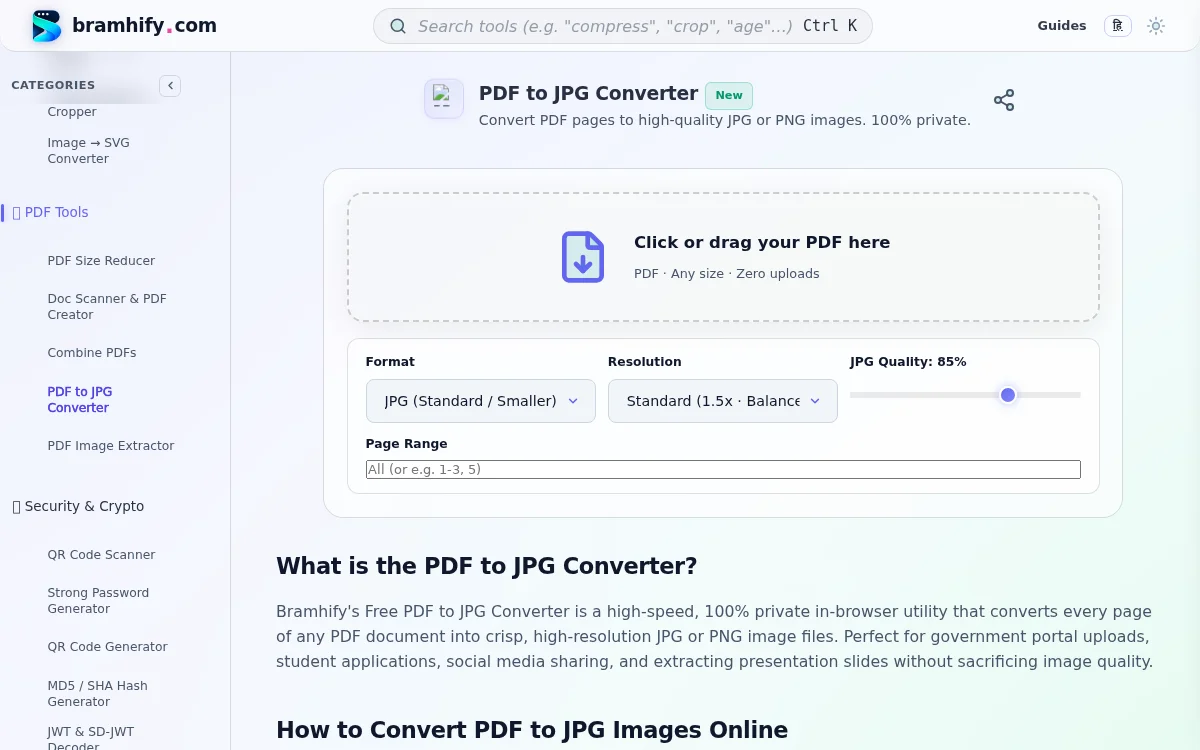

Step-by-Step Guide: How to Convert PDF Pages into High-Quality Images
Converting any PDF to images on your phone or computer takes just a few seconds without installing software.
Step 1: Tap to Select Your PDF File
Open the PDF to JPG Converter and tap the upload dropzone, or drag and drop your PDF file directly into the designated area. Because processing is entirely local, your file opens instantly without waiting for network upload bars.
Step 2: Choose Output Format and DPI Resolution
Customize your output preferences in the settings bar before converting:
- Format: Choose JPG if you need compact file sizes for portal uploads or email attachments. Choose PNG if your document contains sharp text, diagrams, or line art that require lossless clarity.
- Resolution Scale: Keep Standard (1.5x) for general use, or switch to High-Res (2.0x) if you need high-DPI images for crisp printing and scanning.
- Page Range: Leave blank to convert all pages, or enter specific page numbers (e.g.,
1-3or2, 4) if you only need certain pages extracted.
Step 3: Inspect Converted Page Thumbnails
The tool automatically renders every page onto local canvas elements. Each page card displays its pixel dimensions, file size, and page number, allowing you to preview the quality before saving.
Step 4: Download Individual Images or All as ZIP
Tap the Download button on any individual page card to save that specific image to your downloads folder. Alternatively, tap Download All as ZIP to bundle every converted page into a single compressed archive. That's it! Your images are ready to use.
Frequently Asked Questions (FAQs)
What is the difference between JPG and PNG for PDF conversion?
JPG utilizes lossy compression, which significantly reduces image file sizes while keeping photos and scanned documents visually sharp. This makes JPG the preferred standard for exam portals and government identity forms. PNG utilizes lossless compression, ensuring every pixel and text edge remains razor-sharp, making it ideal for blueprints, flowcharts, and technical schematics.
Is my PDF file uploaded to any remote server?
No. All rendering and image encoding is executed directly in your browser's memory using Mozilla's pdf.js rendering engine and JavaScript Canvas APIs. No file contents, images, or metadata are ever transmitted across the network, providing complete confidentiality.
Can I convert password-protected PDF files?
Yes, provided you know the document password. If you upload an encrypted PDF, you must unlock or remove the password first before converting, as client-side rendering engines respect document permission flags.
Does this tool work on mobile phones without internet?
Yes. The tool is fully responsive on iOS and Android smartphones. Furthermore, Bramhify utilizes Service Worker caching, meaning once the web application loads, you can convert PDFs into images even in airplane mode or with poor network connectivity.
If you ever need to perform the reverse conversion and bundle multiple photos into a clean document, check out our companion JPG to PDF Converter or learn more in our tutorial on how to convert JPG to PDF free.