


Nothing kills momentum faster than finishing a 30-minute online application, tapping Submit, and getting hit with a red validation banner: "PDF file must be under 100KB."
Whether you are uploading an Aadhaar card, degree certificate, bank passbook, EPFO claim, scholarship form, or resume to a strict HR or government portal, hitting a 100KB ceiling is frustrating. A single photo taken on a modern smartphone camera is easily 3MB to 5MB — thirty to fifty times larger than the portal allows.
Most people panic and paste their private ID document into the first cloud PDF compressor on Google. That works once in a while — until it shrinks your file to 112KB (still rejected!), blurs the text beyond recognition, or worse, leaves a copy of your bank statement sitting on a third-party server.
Here is how to reduce any PDF strictly under 100KB directly on your phone or laptop in seconds, keep the text readable, and never upload your document anywhere.
Why 100KB Is So Hard for Standard Compressors
Standard "Low / Medium / High" PDF compressors guess a single compression ratio and hope for the best. If your original scan is 2.4MB, "Medium" might bring it down to 640KB and "Extreme" might crush it to 180KB — still way above 100KB.
To land cleanly at 92KB–98KB without turning your text into gray soup, the compressor has to do two things mathematically:
- Reserve structural overhead first: Every valid PDF needs a few kilobytes for its header, page catalog, and cross-reference table.
- Tune resolution and JPEG quality per page via binary search: Instead of blindly crushing quality to 10%, the engine tests quality steps on each page so it uses the highest possible visual sharpness that still fits inside your 100KB byte budget.
That is exactly how Bramhify's Target Size mode works — and because it runs locally inside your browser using PDF.js and pdf-lib, your personal files never leave your device.
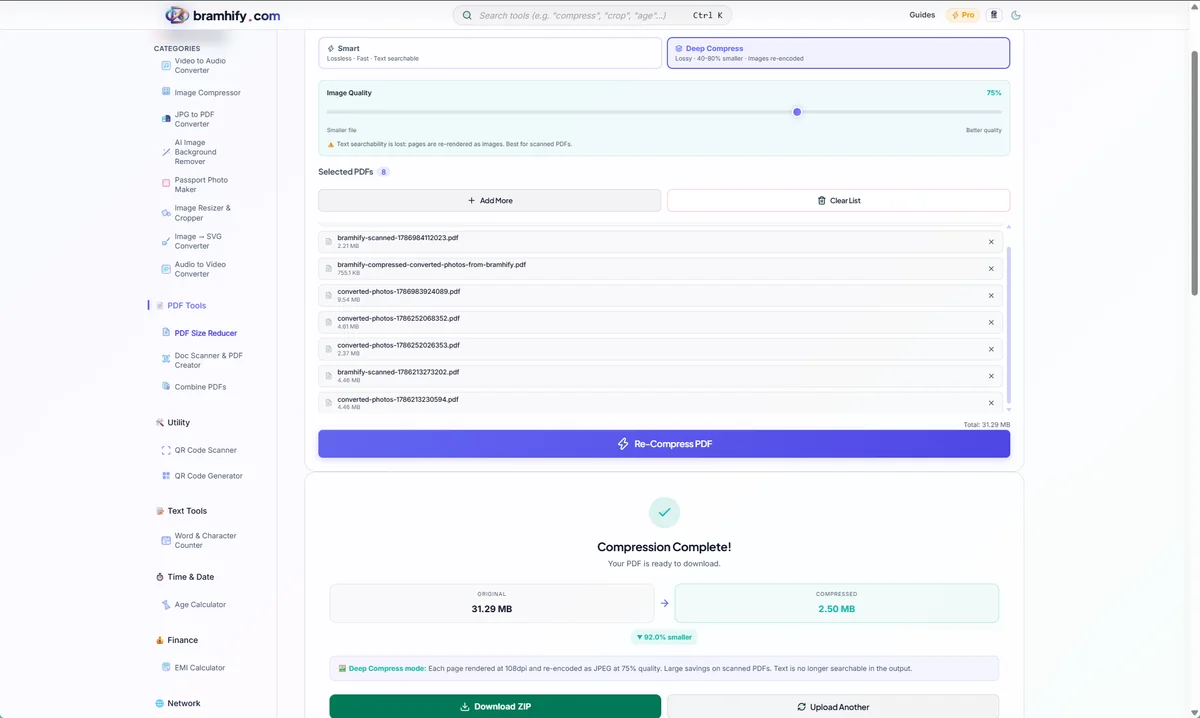
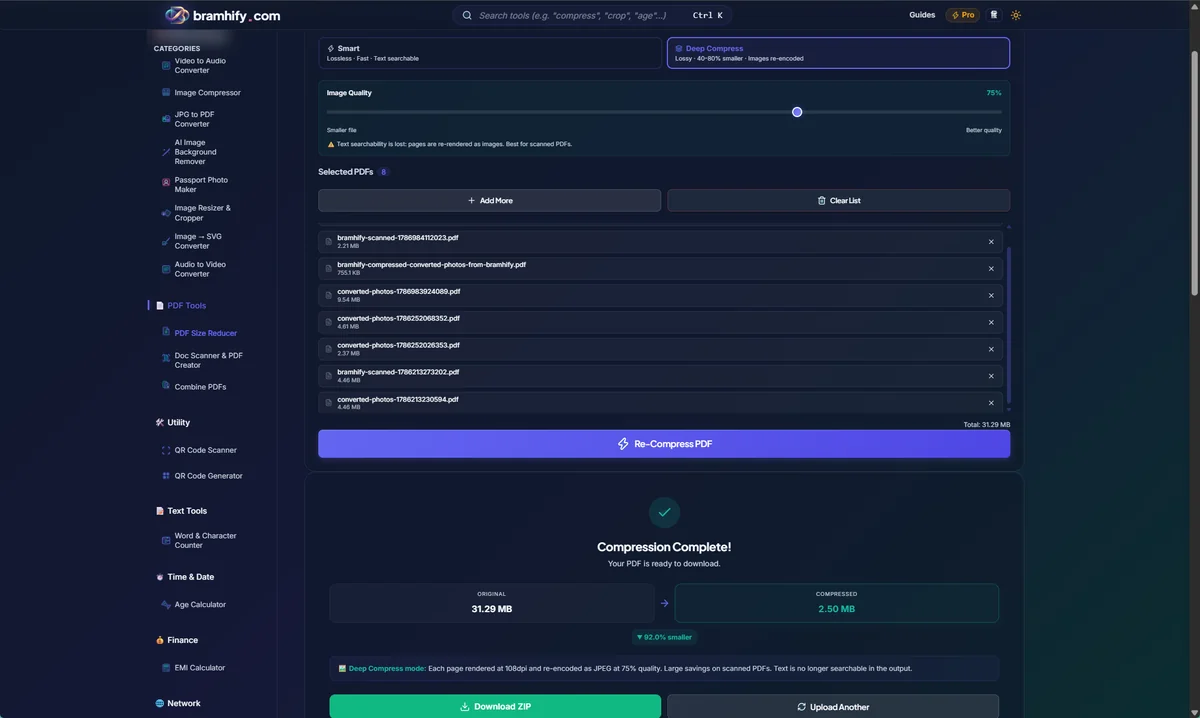

Step-by-Step: Compress Any PDF to 100KB on Your Phone
You do not need an app install, account, or paid subscription. You can finish this in under 20 seconds:
Step 1: Open the PDF Size Reducer
Tap the PDF Size Reducer card above. Once the page loads, you can even turn on Airplane Mode — all compression math runs inside your phone's memory.
Step 2: Select Your PDF File (Up to 10 at Once)
Tap the upload dropzone and pick your heavy PDF from your Files app or Downloads folder. You can queue up to 10 documents in one batch if you are preparing multiple certificates for the same application.
Step 3: Switch to Target Mode & Pick 100KB
Under Compression Mode, you will see three options:
- Balanced: Quick ~60% reduction at 75% quality (great for everyday emailing).
- Custom: Manual quality slider from 40% to 90%.
- Target: Built specifically for strict portal limits.
Tap Target. The 100KB preset is already highlighted by default — or you can tap 200KB, 300KB, 500KB, 1MB, 2MB, or type any exact custom limit (like 95 KB or 150 KB) into the Or enter exact KB box.
Step 4: Tap Compress PDF and Download
Tap Compress PDF. Watch the live progress bar as the tool optimizes each page in memory. In a few seconds you will see the Original → Compressed size comparison and savings percentage. Tap Download PDF and upload the clean file straight to your portal.
Common Portal PDF Upload Limits (Quick Reference)
Not every website asks for 100KB. Double-check your portal's exact limit so you do not over-compress your document unnecessarily:
| Portal / Use Case | Typical PDF Limit | Best Mode in Bramhify |
|---|---|---|
| EPFO / UAN Passbook & KYC | 100KB – 500KB | Target → 100KB or 500KB |
| State Scholarship / College Portals | 100KB – 200KB | Target → 100KB or 200KB |
| NSDL / UTIITSL PAN Card Proof | 300KB | Target → 300KB |
| UPSC / SSC / IBPS / GATE Certificates | 100KB – 300KB | Target → 100KB or 300KB |
| Passport Seva & Driving License | 500KB – 1MB | Target → 500KB or 1MB |
| UK / Schengen / US / Canada Visa Portals | 2MB – 5MB | Balanced or Target → 2MB |
| Job Portals & HR Resume Uploads | 500KB – 2MB | Balanced (keeps layout sharp) |
Pro tip: If a portal says "Maximum 100KB", typing
95into the custom KB box gives you an extra 5KB safety margin against strict server-side binary vs decimal KB rounding (100,000 bytes vs 102,400 bytes).
4 Tricks to Keep a 100KB PDF Crystal Clear
Physics still applies: squeezing a colorful 12-page photo album into 100KB leaves only ~8KB per page, which will always look blurry. Use these four habits before compressing to get noticeably sharper text:
- Scan in Grayscale or Black & White first: Color backgrounds waste 60%+ of your byte budget. If you are capturing paper documents with your camera, use our Document Scanner with the Grayscale filter before compressing.
- Crop tightly around the document edges: Removing your desk, bedsheet, or floor around a certificate eliminates thousands of wasted pixels and lets the compressor spend every kilobyte on the actual text.
- Only include the pages the portal asked for: Don't upload an entire 8-page bank statement when the form only needs page 1. Split out unnecessary pages first so 100KB covers just 1 or 2 pages.
- Start from clean photos, not screenshots of screenshots: If you have fresh camera photos of your ID or mark sheet, combine them with JPG to PDF and then run the PDF Size Reducer once — repeated re-saving causes artifact buildup.
Why You Should Never Upload Private IDs to Cloud Compressors
Aadhaar cards, PAN cards, tax returns, payslips, and visa files contain enough personal data for full identity theft. Cloud PDF sites upload your raw document to remote servers in another jurisdiction where logs, backups, and retention policies are out of your hands.
With Bramhify, zero bytes of your PDF ever travel over the network. Your own browser's CPU renders, compresses, and reassembles the file in RAM, and closing the tab wipes it immediately.
Frequently Asked Questions
How can I reduce a PDF to exactly 100KB or less?
Open Bramhify's PDF Size Reducer, select your PDF, switch to Target mode, choose 100KB (or type 95 in the custom KB field for an extra safety margin), and tap Compress PDF. The tool uses binary search to hit the size limit while preserving the highest possible readability.
Will compressing a PDF to 100KB make my text blurry?
For 1 to 2-page documents (like an ID card, resume, or single certificate), 100KB stays completely readable when properly cropped. For 5+ page scanned documents, 100KB is tight — converting scans to grayscale and cropping margins first significantly improves sharpness.
Why did a government portal reject my 99KB PDF?
Some portals calculate 100KB in decimal (100,000 bytes = 97.6 KiB) while Windows and macOS display binary kilobytes (102,400 bytes = 100 KiB). Entering 95 KB in the custom KB input box guarantees your file passes both decimal and binary checks.
Is it safe to compress Aadhaar, PAN, or bank statement PDFs here?
Yes. Bramhify runs 100% locally in your browser memory using PDF.js and pdf-lib. No file is uploaded to any server, no account is needed, and nothing is stored after you close the tab.
What if my PDF is password-protected?
Encrypted or password-locked PDFs (like e-Aadhaar or bank statements) must be unlocked before compression. Save an unlocked copy from your browser's Print → Save as PDF dialog first, then drop the unlocked PDF into the reducer.
Related Document Guides
- Need a higher upload cap like UPSC or Passport Seva? Read How to Compress PDF Below 500KB for Government Uploads.
- Combining multiple mark sheets before compressing? Follow How to Merge PDF Files for a Job Application.
- Compressing a photo instead of a PDF? See How to Compress an Aadhaar Card Photo Online or explore our best free PDF tools with zero uploads.